
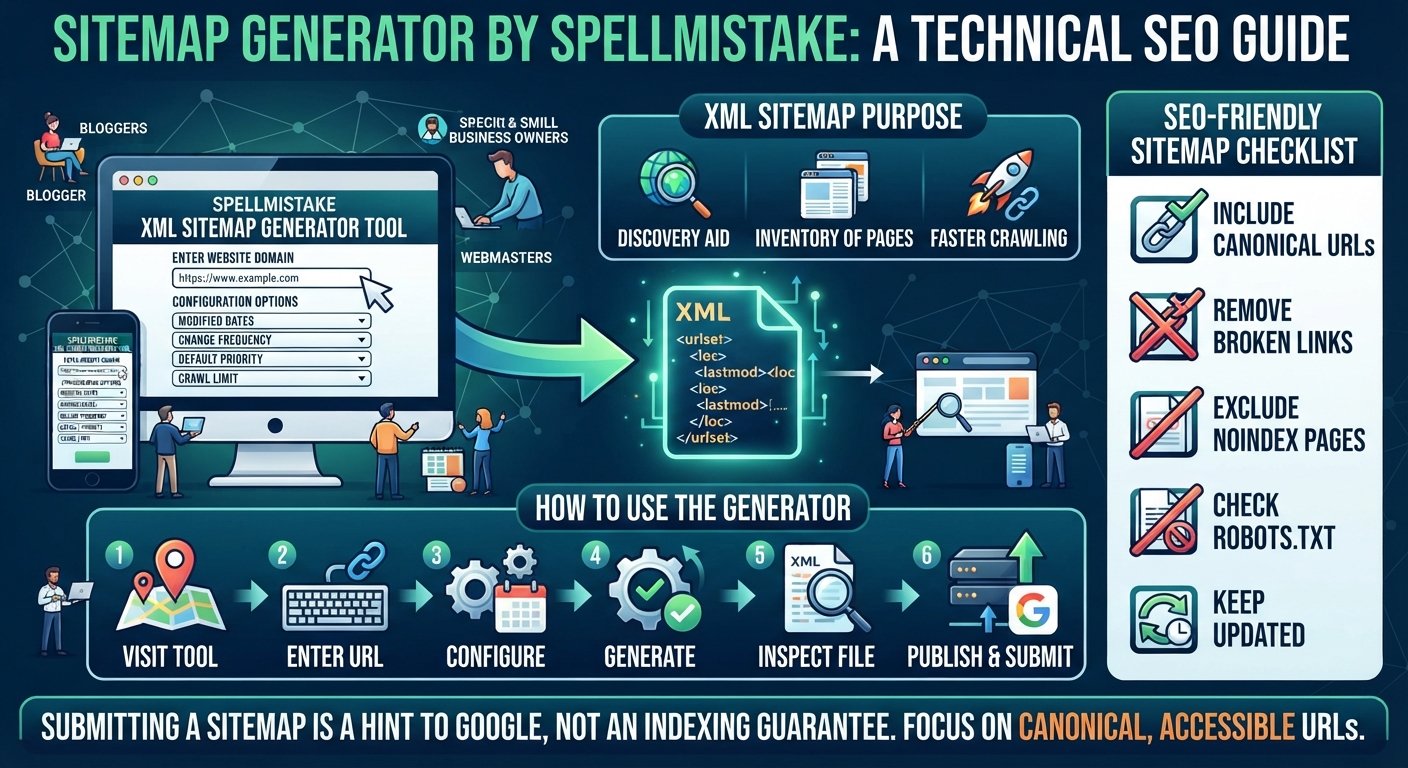
A sitemap generator by SpellMistake is an online tool that helps website owners create an XML sitemap containing URLs they want search engines to discover. You can enter your website domain, review available configuration options, and generate a sitemap file for your site. This is useful for bloggers, small businesses, and website managers who want a straightforward way to organize important URLs for search engines. However, creating a sitemap is only one part of technical SEO; the URLs must also be accessible, relevant, and suitable for indexing.
Quick Answer: What Is the Sitemap Generator by SpellMistake?
The Sitemap Generator by SpellMistake is a free online utility available at spellmistake.com/xml-sitemap-generator. It provides an interface for entering a domain and configuring sitemap-related options, including modified dates, change frequency, default priority, and the number of pages to crawl.
The goal is to produce an XML sitemap that can help search engines discover important pages on your website. After generating the file, you should inspect its contents, make sure it includes the correct URLs, publish it at an accessible location, and submit it through Google Search Console when appropriate.
What Is an XML Sitemap?
An XML sitemap is a structured file that lists URLs on a website. It gives search engines a convenient way to discover pages that may be relevant to their search results.
Think of a sitemap as an inventory of your website’s important pages. Instead of relying exclusively on links between pages, search engines can consult the sitemap to learn which URLs you want them to find.
For example, a business website might contain:
- A homepage
- An About Us page
- Service pages
- Contact information
- Blog articles
- Product or category pages
An XML sitemap can list the canonical versions of these URLs, provided they are intended to appear in search results.
Why Does a Sitemap Matter for SEO?
A sitemap can be particularly helpful when a website is new, contains many pages, or has sections that are difficult to discover through normal navigation. It can also help search engines learn about newly published or updated URLs.
However, a sitemap is not a ranking shortcut. Google explains that submitting one is a hint rather than a guarantee that the listed URLs will be crawled or indexed.
Your site still needs useful content, accessible pages, appropriate internal links, and a technically sound setup.
What Does the SpellMistake Sitemap Generator Offer?
The official tool presents a simple interface intended to make sitemap creation more accessible. Its visible controls allow users to enter a domain and configure several sitemap options.
1. Domain Entry
The domain field is where you enter the website you want to work on.
Use your preferred canonical website address, including the correct protocol. For example:
https://www.example.com/
If your website uses a non-www version, use that instead. The important point is to remain consistent with your canonical URL setup and avoid mixing duplicate versions of the same page.
2. Modified Date
The modified-date option relates to information about when a page was last meaningfully updated.
This information can help search engines understand whether a URL has changed. However, dates should be accurate. Do not mark every page as recently updated simply because you are generating a new sitemap.
For example, if you substantially revise a guide on October 5, the date should reflect that meaningful change—not an unrelated sitewide update.
3. Change Frequency
Change frequency describes how often a page is expected to change. Depending on the available configuration, options may include intervals such as daily, weekly, or monthly.
Choose values that reasonably reflect your publishing habits. A frequently updated news page and a permanent contact page generally have different update patterns.
One important technical detail: Google states that it ignores the <changefreq> value when processing XML sitemaps. You should not expect this setting to make Google crawl a page on a fixed schedule.
4. Default Priority
The default-priority option lets you assign a relative priority value to sitemap URLs.
For example, a site owner might consider a main service page more important to the website than an old archive page. That distinction can be useful when organizing a site, but it does not force search engines to rank or crawl one URL ahead of another.
Google also ignores the <priority> value in sitemaps. Focus on accurate URLs and meaningful site architecture rather than treating priority settings as a ranking factor.
5. Crawl-Page Limit
The tool interface also displays an option for specifying how many pages to crawl.
This matters because websites can vary significantly in size. A small blog may have dozens of important URLs, while an online store may have thousands of product and category pages.
Choose a crawl limit that makes sense for your website, then check the generated output to confirm that important pages have not been omitted.
Do not assume that a crawl has covered every page just because the process finishes successfully.
How to Use the Sitemap Generator by SpellMistake
Follow these steps to create and check your sitemap.
Step 1: Open the Official Tool
Visit the SpellMistake XML Sitemap Generator.
Confirm that the address uses the official spellmistake.com domain. Search results may contain articles hosted on other domains discussing the tool, so checking the address helps you avoid confusing an independent article with the actual utility.
Step 2: Enter Your Website URL
Enter the full address of your website.
For example:
https://www.example.com/
Replace the example with your own domain. Use HTTPS if that is the canonical version of your site, and make sure you have selected the correct www or non-www format.
A mismatch can introduce duplicate or inconsistent URLs into the sitemap.
Step 3: Configure the Available Options
Review the modified-date, change-frequency, default-priority, and crawl-page settings shown in the interface.
Use these options carefully:
- Choose a realistic crawl limit.
- Avoid inventing update dates.
- Do not assume a higher priority value guarantees better rankings.
- Keep your preferred URL format consistent.
If you are unsure about a setting, prioritize producing a clean sitemap over filling every optional field.
Step 4: Generate the Sitemap
Start the generation process using the tool’s available controls. Wait for the crawl to finish, and review the result.
The interface displays a link-count area, which can help you see whether the tool has discovered URLs.
A successful generation process is not proof that every URL is correct. Some pages may be inaccessible to the crawler, blocked, linked in ways the tool cannot follow, or excluded by its crawl limits.
Step 5: Inspect the XML File
Download or save the generated sitemap using the available output option.
Open the XML file in a browser or text editor and check the contents. A sitemap commonly contains entries like this:
<?xml version="1.0" encoding="UTF-8"?>
<urlset xmlns="http://www.sitemaps.org/schemas/sitemap/0.9">
  <url>
    <loc>https://www.example.com/</loc>
  </url>
  <url>
    <loc>https://www.example.com/about/</loc>
  </url>
</urlset>
This simplified example shows two URLs. A generated sitemap may include additional elements, such as valid last-modified dates.
Check that the file contains absolute URLs, uses the correct domain, and follows XML formatting requirements.
Step 6: Publish the Sitemap on Your Website
For a typical website, a convenient location is:
https://www.example.com/sitemap.xml
Your actual filename may differ. The important thing is to make sure the generated file is hosted at a stable, publicly accessible URL.
If the tool only gives you a downloadable file, you may need to upload it through your hosting control panel, FTP client, or another method supported by your website platform.
For WordPress users, check whether the site already generates a sitemap before uploading a second one. WordPress and SEO plugins often provide sitemap functionality automatically.
Step 7: Submit the Sitemap to Google Search Console
Once the sitemap is published, open Google Search Console and select the correct website property.
Find the Sitemaps report, enter the sitemap URL, and submit it. Review the resulting status and investigate any reported errors.
You can also add a sitemap reference to your website’s robots.txt file:
Sitemap: https://www.example.com/sitemap.xmlReplace the example address with your real sitemap location.
Submission helps Google discover the sitemap, but it does not guarantee that every listed page will appear in search results.
How to Check Whether Your Sitemap Is SEO-Friendly
Generating a file is only the beginning. A useful sitemap should reflect the pages you actually want search engines to consider.
Use the following checklist before submission.
Include Canonical, Indexable URLs
Include the preferred version of each important page. Avoid listing multiple URL variations that display the same content.
For example, if your preferred page is:
https://www.example.com/blog/seo-guide/
do not unnecessarily list alternative versions using HTTP, a different hostname, or inconsistent URL formatting.
Remove Broken and Redirecting URLs
Review the URLs in your sitemap and check whether they load correctly.
Ideally, the listed pages should return a successful HTTP status and resolve to the canonical destination. Remove URLs that return errors, redirect unnecessarily, or lead to irrelevant content.
Exclude Pages You Do Not Want Indexed
A sitemap should not be a list of every URL that exists on your server.
Consider excluding pages such as:
- Internal search-result pages
- Duplicate URL variations
- Temporary campaign URLs that should not be indexed
- Pages that redirect elsewhere
- URLs returning a 404 error
- Pages intentionally marked
noindex
The exact exclusions depend on your site, but the objective is consistent: list the canonical URLs you want search engines to discover.
Check Your Robots.txt Rules
Your robots.txt file can influence whether crawlers access particular parts of your site. Check that your important pages are not unintentionally blocked.
Remember that robots.txt and noindex serve different purposes. Blocking a URL from crawling does not guarantee that it will never appear in search results, because a search engine may discover the URL through other sources.
Use the correct mechanism for your indexing requirements.
Keep the Sitemap Updated
Whenever you publish important new pages or remove old ones, make sure your sitemap reflects the current site.
If your content management system automatically maintains a sitemap, that may be more practical than repeatedly generating and uploading a static file. For frequently updated websites, automated maintenance can reduce the chance of outdated URLs remaining in the file.
SpellMistake vs. Your Website’s Built-In Sitemap
The best sitemap method depends on your website platform and how often your content changes.
| Method | Best suited for | Main consideration |
|---|---|---|
| SpellMistake generator | Users who want a standalone sitemap tool | Review the output and arrange hosting yourself if needed |
| WordPress or SEO-plugin sitemap | WordPress websites | Check whether a sitemap already exists |
| Website platform’s built-in sitemap | Hosted platforms with automatic sitemap generation | Verify the sitemap includes the intended pages |
| Developer-generated sitemap | Large or complex websites | Requires appropriate technical setup and maintenance |
Advantages of SpellMistake
The tool offers a dedicated interface for sitemap generation and provides several configurable fields. It can be useful when you want to create an XML file without manually writing each entry.
It is also a practical option for people who are learning the basics of technical SEO and want to understand how sitemap configuration works.
Limitations to Consider
A standalone generator does not automatically solve every technical SEO issue.
Depending on the website and crawl settings, it may miss pages or include URLs that require cleanup. If you download a static sitemap, you must also ensure that it remains current after website changes.
The tool should therefore be treated as one part of a sitemap workflow—not a replacement for URL auditing, canonical management, Search Console monitoring, or a suitable content management system.
Common Sitemap Generator Problems and How to Fix Them
The Tool Finds Fewer Pages Than Expected
Check your navigation, internal links, crawl limit, and page accessibility. Important pages that are not linked clearly may be missed by some crawling tools.
Compare the sitemap against your CMS page list or a website crawl to identify omissions.
The Sitemap Contains Duplicate URLs
Check whether the site uses multiple hostname or protocol versions, inconsistent trailing slashes, or URL parameters.
Choose the canonical version of each page and remove unnecessary alternatives from the sitemap.
Google Search Console Reports an Error
Open the Sitemaps report and review the reported status or error details.
Confirm that the file is accessible, correctly formatted, and hosted at the expected address. Check the listed URLs for redirects, server errors, or accessibility problems.
Pages Appear in the Sitemap but Not in Google
A sitemap is a discovery aid, not an indexing guarantee. A page may be crawled but not indexed, or it may not be crawled yet.
Use the URL Inspection tool in Search Console to investigate individual pages. Also check whether the content is useful, accessible, canonical, and eligible for indexing.
The Website Has More Than 50,000 URLs
Google’s documented limit for a single sitemap is 50,000 URLs or 50 MB uncompressed, whichever limit is reached first.
If your site exceeds either limit, split the URLs into multiple sitemap files and use a sitemap index where appropriate. Large websites should also consider automated sitemap generation and ongoing validation.
Frequently Asked Questions
1. What is the Sitemap Generator by SpellMistake?
It is an online utility for creating XML sitemaps. The interface lets users enter a website domain and configure options such as modified dates, change frequency, priority, and crawl-page limits.
2. Is SpellMistake’s sitemap generator free?
The official tool page presents the XML Sitemap Generator as a free tool. Check the current page for its latest functionality and any applicable usage conditions.
3. Does a sitemap improve Google rankings?
A sitemap can help search engines discover important URLs, but it does not directly guarantee higher rankings. Rankings depend on many factors, including relevance, content quality, technical accessibility, and competition.
4. How do I submit a sitemap to Google?
Publish the sitemap at a stable URL, open Google Search Console for the correct property, and submit the sitemap through the Sitemaps report. Then check the reported status and resolve any errors.
5. Does Google index every page in a submitted sitemap?
No. Google treats sitemap submission as a hint. It decides which URLs to crawl and index based on its systems and the page’s eligibility and usefulness. A submitted URL may not appear in search results.
Conclusion
The Sitemap Generator by SpellMistake provides a straightforward starting point for creating an XML sitemap. By entering your domain, configuring the available options, and checking the resulting file, you can prepare a list of important URLs for search-engine discovery.
The most important work happens after generation: verify that the sitemap contains canonical, accessible pages; publish it at a stable location; submit it through Google Search Console; and monitor errors as your website evolves.
